

Availability. Seats decide whether a workspace can have teammates at all: 2 on Starter (you plus one teammate), 3 on Pro, 10 on Business, and on Enterprise the number is set in your agreement. Legacy Free accounts have one seat; the free tier closed to new signups on 5 September 2026. Roles, site scope and the four access presets have no plan check, so they work on every plan with a second seat, from Starter up. Custom permissions, meaning picking any of the twenty five per site keys by hand, are on the Pro plan and above. See plans for what each tier includes and pricing for current prices.
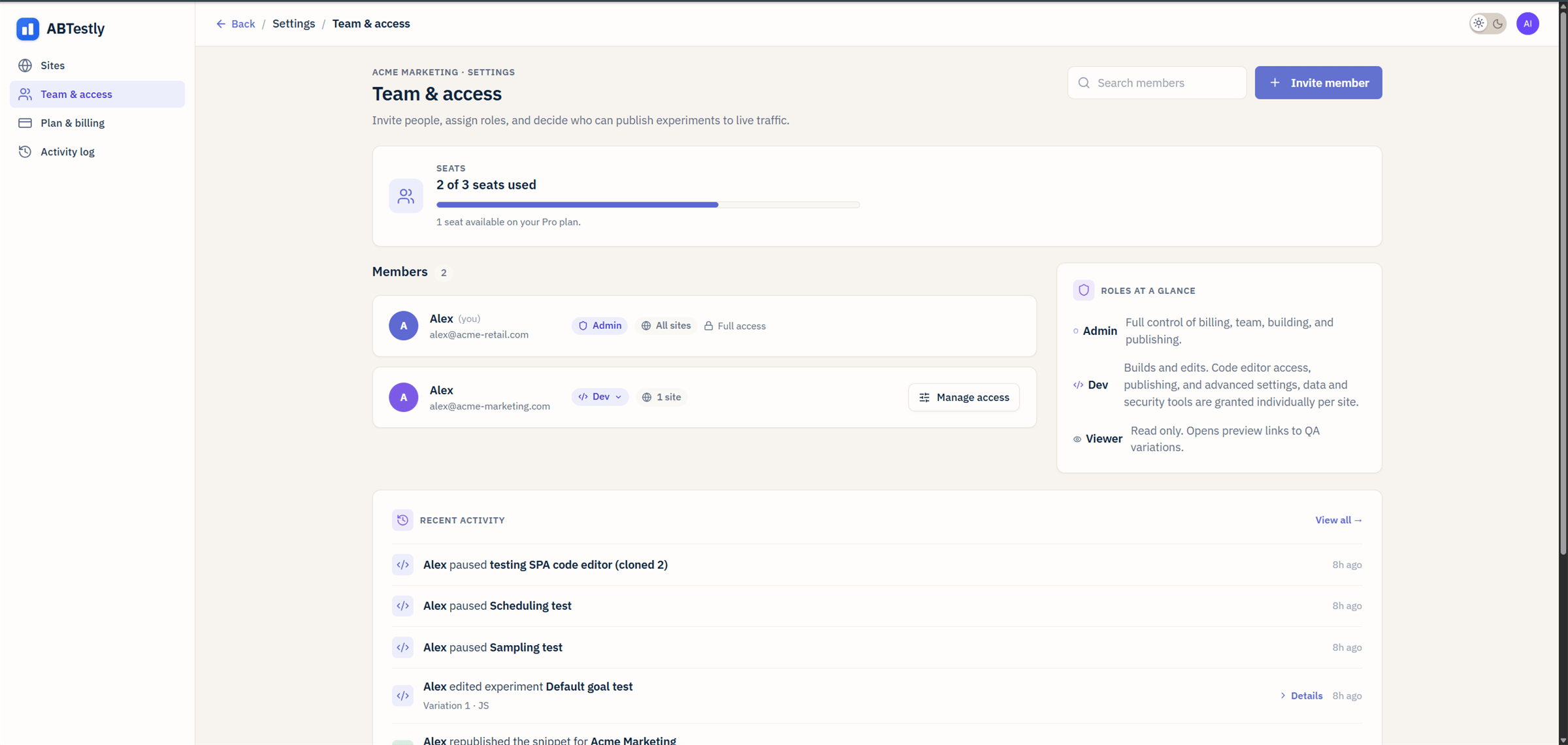
Team & access, every member, their role, the sites they can touch, and a per workspace activity strip at the bottom.
The three roles
Every member has exactly one role. The role is the ceiling: the most that member can ever do. For a Dev, the per site permission keys decide what they actually have inside that ceiling.Admin
Full control. Admins can:- Change the plan, cancel, or pay the bill.
- Invite and remove members, and change any member’s role.
- Set every Dev’s permission keys, on every site.
- Delete sites and delete experiments.
- Publish, pause, archive, restore and schedule anything.
- Edit every setting, goal, location and audience.
Dev
Builds and edits experiments. On each site, a Dev can do exactly what the permission keys granted there allow, and nothing more. Those keys cover the code editor for variation JavaScript and CSS, site settings such as SPA support, Global JS and analytics adapters, the activity log, the blocked IPs list, and more. The permissions catalog lists every one. Being a Dev does not grant Publish on its own. A Dev needs the Publish experiments key on a site before they can send a test live there. That is deliberate: many teams build in one place and ship from another. A Dev gets keys from one of the four access presets, on every plan with a second seat, or picked one by one as custom permissions on Pro and above. Pick Dev for CRO engineers, front end contractors, freelancers, or anyone writing variation code.Viewer
Read only. Viewers can:- Open the dashboard, read results, and browse experiments and their history.
- Open preview links to check variations visually.
- Read the activity log.
Which sites a member can touch
Every Dev and Viewer has a site scope: either every site in the workspace, or a list of sites you choose. The Team & access page shows the scope next to the role on each row. Admins are always on every site. Site scope has no plan check. Two common shapes:- In house team. Everyone on every site. Leave the scope at all sites and use each Dev’s keys, site by site, to decide what they can do where.
- Agency. Each contractor, as a Dev or a Viewer, scoped to one client’s site. They cannot see or touch the other clients’ sites.
The Manage access drawer
Click Manage access on a Dev’s row to open the drawer.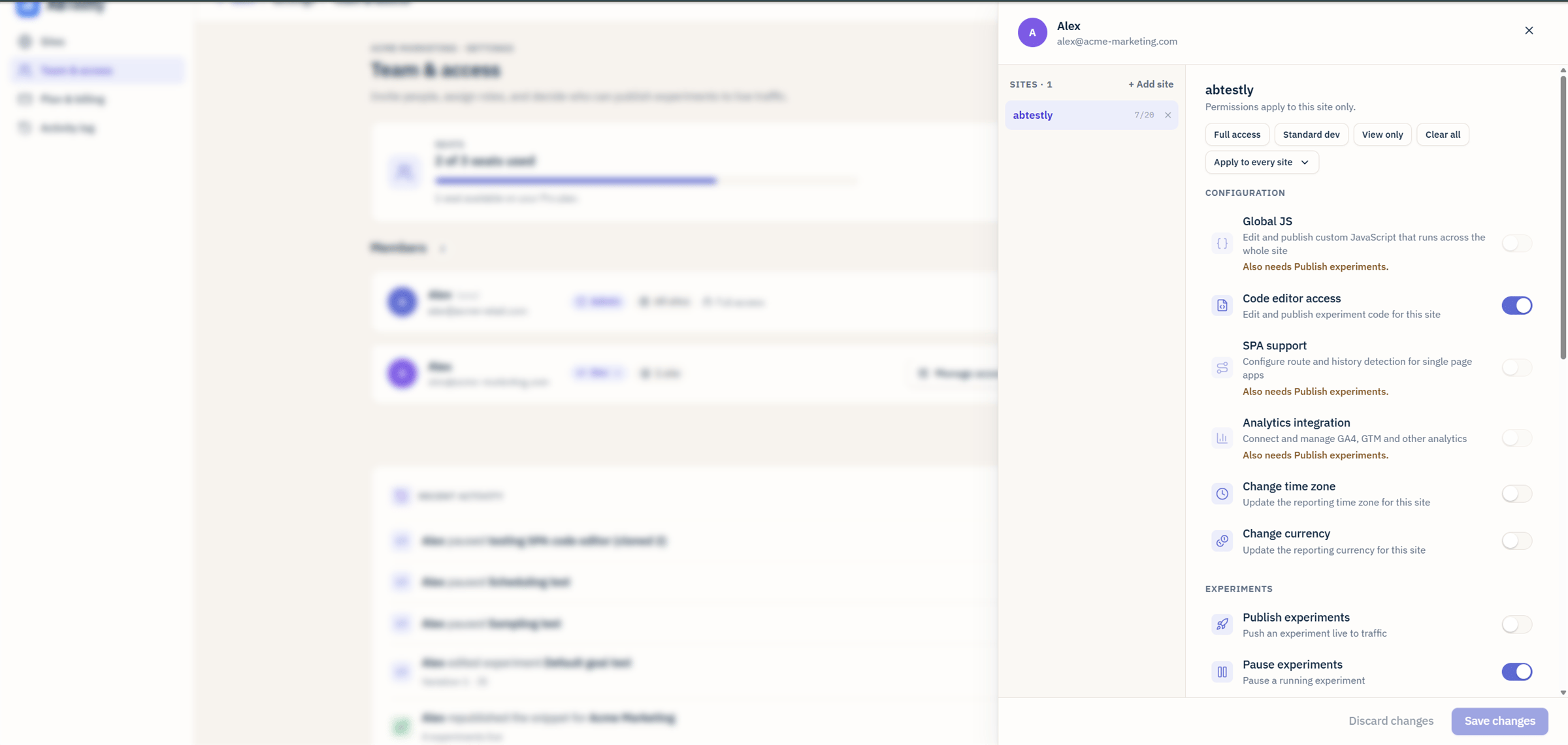
Manage access drawer, every per site permission key with the presets at the top.
- Configuration. Global JS, Code editor access, SPA support, Analytics integration, Change time zone, Change currency, Code checking.
- Experiments. Publish experiments, Pause experiments, Schedule experiments, Archive experiments, Delete experiments.
- Data. Add and remove assets, Add and edit goals, Add and edit locations, Add and edit audiences, Add and edit campaigns, Exclusion groups, Dev libraries.
- Security. IP block list, Activity log, QA session links.
- Signals. Access Signals, Run Signals, Manage GA4.
- Danger zone. Access danger zone, shown apart from the groups and left out of every preset.
Access presets
Four presets sit at the top of the drawer, on every plan with a second seat:- Full access. Every key except Access danger zone, so twenty five of the twenty six. For a senior CRO lead or a platform engineer.
- Standard dev. Eleven keys for everyday build and ship work: Code editor access, SPA support, Analytics integration, Add and remove assets, Add and edit goals, Add and edit locations, Add and edit audiences, Add and edit campaigns, Publish experiments, Pause experiments and Schedule experiments. It leaves out Global JS, the time zone, currency and code checking settings, Archive and Delete experiments, Exclusion groups, Dev libraries, the Security and Signals groups, and Danger zone. A safe default for someone who runs tests day to day.
- View only. Only Activity log. Reading goals, assets, locations and audiences needs no key, so this is enough for a Dev who should look and not change anything.
- Clear all. Every key off.
Custom permissions
On Pro, Business and Enterprise, a preset is a starting point. Apply one, then turn individual switches on or off, and save. Any combination of the keys is allowed, as long as it follows the companion rules.Below Pro
On Starter the drawer still shows every switch, set to what each site has saved, but the switches are locked. Under the presets a note reads “Custom permissions are on the Pro plan and above. Use a preset on this plan.” with an Upgrade plan link. The four presets and Apply to every site stay live, so you can always give a teammate more access or less. You choose it from the four presets rather than switch by switch. The API holds the same line. Below Pro, a save for one site is accepted only when it is one of the four presets, or exactly the set that site already holds. Anything else is refused with403 feature_requires_plan and nothing is saved. That includes switching keys off one at a time: to take access away below Pro, apply View only or Clear all.
After a downgrade
A set you customized on Pro keeps working after a move to Starter. The member keeps exactly the keys they had, and every check reads them as before. You can replace it with any preset at any time. You cannot edit it into a different custom set until the workspace is on Pro or above again.Companion rules
Four keys only work alongside Publish experiments, because each one reaches live traffic:- Global JS
- SPA support
- Analytics integration
- Schedule experiments, since a scheduled start turns into a running experiment
Enforcement in the dashboard and the API
Permission checks run in both places:- The dashboard hides buttons a member cannot use. A Viewer never sees a Publish button.
- The API refuses the call. A client that went around the dashboard would still get a
403.
Common team shapes
Solo founder
You are the only member, as Admin, on every site. Nothing to configure. Add teammates as you grow.
Starter, you plus one
You as Admin. One teammate as a Dev on Standard dev, or as an Admin if they should run everything. That fills both Starter seats.
In house team on Pro or Business
You and a CRO lead as Admins. Devs on Standard dev, adjusted site by site where needed. Stakeholders as Viewers. Pro has 3 seats and Business has 10.
Agency with client work
You as Admin. Each contractor a Dev scoped to one client’s site. Standard dev works on every plan. Holding Publish back for a client who wants to press Start themselves is a custom set, so it needs Pro or above.
Compliance conscious team
Two Admins. Devs build without Publish and hand off. One Dev holds Publish and starts tests after review. Both are custom sets, so this shape needs Pro or above. The activity log records every step.
Inviting a member
Invite member on the Team & access page. Enter their email and pick a role. For a Dev, also pick their starting permissions, one of the four presets, and their site access. For a Viewer, pick their site access. An Admin always gets every site. Then send. They get an email with a link to accept. If they already have an ABTestly account under that email, accepting adds them to this workspace. If not, accepting takes them through signup first. When a Dev accepts, the preset you chose is written for each site in their scope. Invites expire after seven days. Resend from the same page; the row shows a “Pending invite” pill for anyone who has not accepted yet. Nothing in the invite tells the recipient anything about your workspace beyond its name.Roles and seats
The seats meter at the top of the page counts members and pending invites, whatever their role. Starter has 2 seats, so you plus one teammate. Pro has 3 and Business has 10. Adding one more person means upgrading, removing someone, or revoking a pending invite. See plans for seats per tier. Viewers take a seat too. ABTestly does not split seats into editing seats and reading seats, so every teammate gets the same experience and the price stays predictable.Removing a member
Remove on their row. They lose access on their next request. Their history stays: every experiment they created, every edit and every publish still shows their name in the activity log and on the experiment. That is intentional, because removing someone must not rewrite the audit trail.Recent activity
The bottom of Team & access shows the last few significant workspace actions. For the full audit trail, including every permission change, use the Activity log. You can filter it by member and by experiment, and share the filtered view by URL.Related
Permissions catalog
Every key, what it unlocks, and what it needs alongside.
Activity log
Every meaningful change, grouped by day, filterable.