

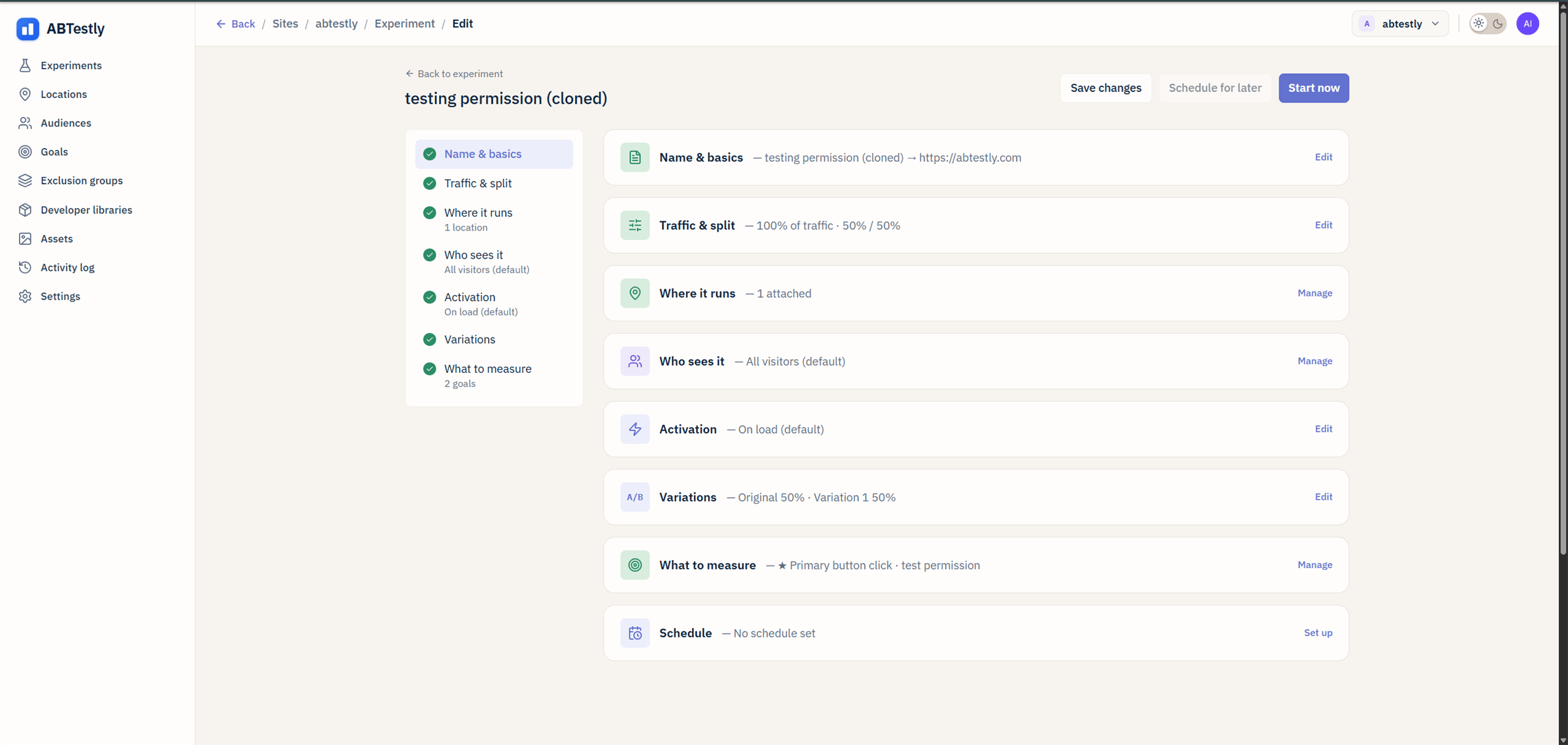
The editor's checklist. Sections turn green as you fill them in.
The sections
1
Name and basics
A human name for the test and the URL you want to run it on. The URL
can be any page on the site, the actual page-matching happens under
Where it runs; this field is a shortcut for the common case of
“run it on this exact URL”.This step also carries the test type: A/B test (variations
change the page with JS and CSS) or Split URL (variations send
visitors to another page). It is fixed once the test is created, so
switching later means cloning.
2
Traffic and split
Two numbers.
- Allocation, what percent of matching visitors enter the test. 100 % by default. Lower this when you want a canary.
- Split, how entered visitors divide across variants. 50/50 with two variants; ABTestly rebalances to even weights automatically as you add or remove variants (uncheck Auto-even to lock a custom split).
3
4
Who sees it
Visitor rules. Country, device, source, cookie value, and a few dozen
more. Leave empty to include everyone. See
Audiences.
5
Activation
When the exposure fires. On load, on click, when an element is
visible, or manual. See
Activation triggers.
6
Variations
The Original (baseline) and one or more variants. In an A/B test each
variant is a piece of JavaScript, CSS, or both, applied to matching
pages. In a Split URL test each variant carries a redirect URL
instead, and the code editors are not offered. See
Variations.
7
What to measure
One primary goal, plus any number of guardrails. The two system
goals attach automatically as guardrails. See
Goals overview.
8
Schedule
Optional. Start on a date, stop on a date, cap the run length. See
Schedule.
Saving
The editor is an explicit save form: nothing you type is sent until you click Save changes. The one exception is variation code, which is mirrored into your browser as you type so a crash does not lose it. If the tab crashes, reopen the code editor and the recovery banner offers your unsaved work back. If you close the tab while a save is actually in progress, the browser asks you to confirm first. See Autosave and drafts.Save changes never applies a schedule. Use Schedule for later
for that. See Schedule.
The publish gate
The Start now and Schedule for later buttons require the Publish experiments permission on this site. If they are grayed out for you, you have the Dev role but no publish key, ask an admin to turn it on for the site under Team & access.Save without launching
Save changes stores the draft without going live. You can share the link with a stakeholder for review. When they approve, come back and click Start.Section by section, in practice
For a first pass, most sections can be left at their default. The minimum viable test:- Name it.
- Confirm the URL under Name and basics.
- Add one variant under Variations.
- Under What to measure, pick a primary goal.
- Start now.