

Where to get it
Open your site in the dashboard and go to Settings → Snippet. Copy from there. The snippet is built from your consent settings, so it needs to come from your site, not from a copy someone had lying around from last month.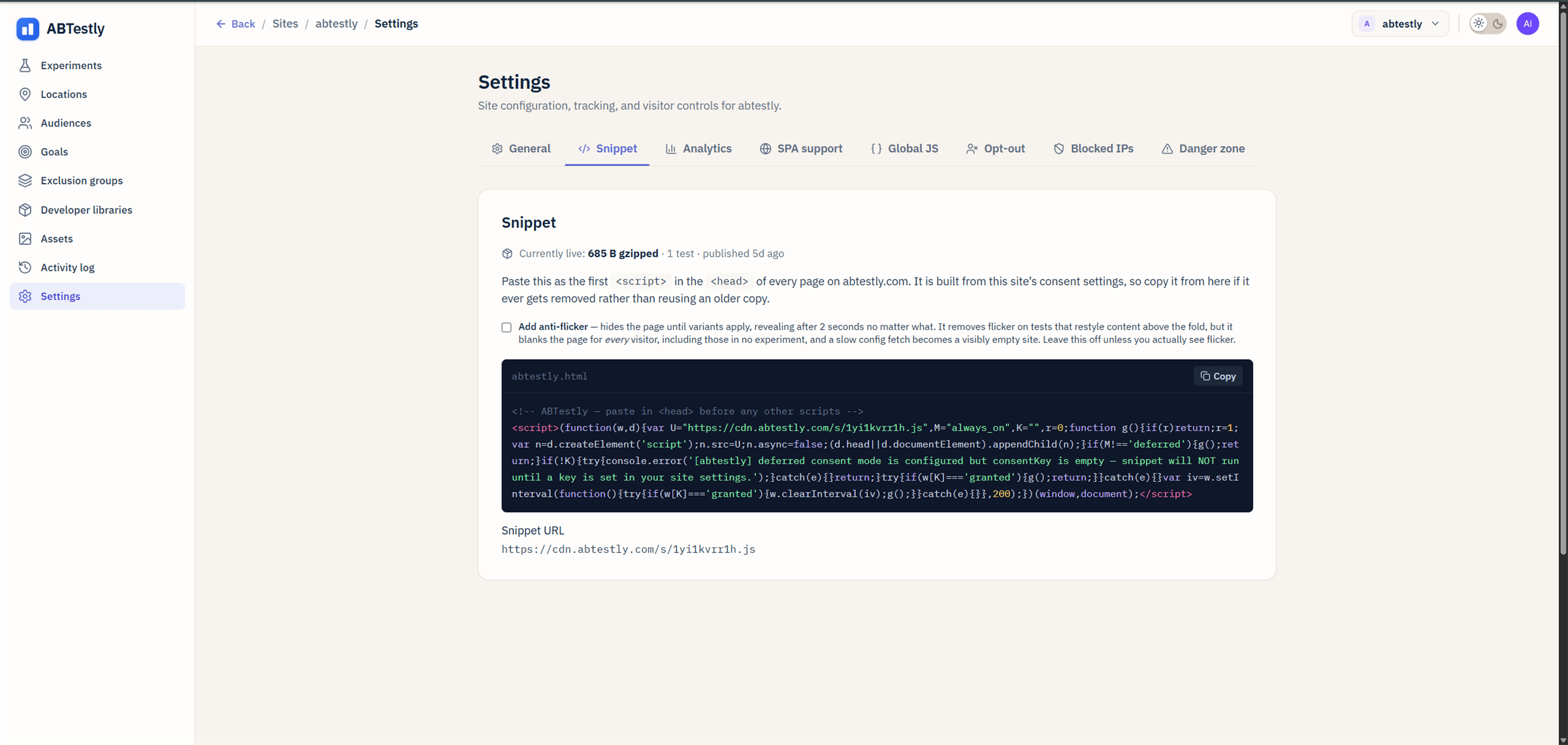
Where to put it
Put the snippet as early as possible in<head>, before anything else that runs JavaScript. The one thing that may run before it is a synchronous consent bootstrap, a small inline script or CMP that establishes the visitor’s consent state, which ABTestly reads on its first run (see Consent and deferred mode). Everything that depends on the experiment assignment, your analytics and application scripts, must come after. That order is not a style preference. Two things depend on it:
- Flicker. The earlier the snippet runs, the sooner the runtime is fetched and the variant is applied. Run it late and visitors see the original page for a moment before the variant swaps in.
- Execution order. Other scripts on your page might read variant changes, a GTM tag looking for a custom dimension, an analytics event that captures the current headline. Those have to fire after the variant is applied.
Anti-flicker is opt-in
The snippet panel has an Add anti-flicker checkbox. It is unchecked by default, and that default is deliberate. Checked, the snippet includes a.abtestly-async-hide { opacity: 0 !important } rule and puts that class on your <html> element at the top of the page. The class comes off once variants apply, or after two seconds, whichever comes first. The page never stays hidden.
Unchecked, nothing is hidden. A variant that changes content above the fold can show the original first for a beat, because the runtime is injected as a dynamic <script> and does not block the parser.
Why is it off by default? A page-wide hide costs every visitor on every page, including the ones in no experiment. If the config fetch is ever slow, that becomes a visibly empty site. Flicker only shows on the pages a variant actually changes. Tick the box when, and only when, you can see it.
Anti-flicker lives in the snippet you pasted, not in the runtime. An older snippet with the checkbox off will keep behaving that way until you replace it with a freshly copied one.
Do not load through Google Tag Manager
GTM adds asynchronous timing to whatever it loads, so it cannot guarantee that ABTestly runs before the browser starts painting. In practice, loading ABTestly through GTM produces consistent flicker on any variant that changes above-the-fold content. If you only have GTM access, ask for direct HTML access from whoever owns the site. There is no GTM workaround that does not slow things down.Do not use async or defer
Both delay execution. The inline snippet needs to run synchronously and as early as it can. It is what decides the variant, and, with anti-flicker on, what puts the hide in place before the first paint. The snippet is already stripped to the minimum work needed; the runtime itself is asynchronous where it can be.
CMS-specific install
WordPress
Use the Insert Headers and Footers plugin, or edit your theme’s
header.php. Paste into “Scripts in Header”, above every other script.Shopify
Theme → Edit code →
theme.liquid → find <head> → paste immediately after the opening tag, before any other <script> or {{ content_for_header }} call.Webflow
Project Settings → Custom Code → Head Code → paste at the very top. Webflow inserts other scripts dynamically; verify the load order on the published site.
Framer
Site Settings → General → Custom Code → Head start → paste the snippet.
Next.js
next/script with strategy="beforeInteractive" inside the root <Head> of _document.tsx. Verify the build output places the tag before any other JavaScript in <head>.Astro / SvelteKit / Nuxt
Root layout’s
<head> slot. Astro: <Fragment slot="head">. SvelteKit: app.html. Nuxt: nuxt.config.ts → app.head.script with tagPosition: "head" and no defer.Content Security Policy
If your site sends a CSP, the snippet needs four things:script-src https://cdn.abtestly.com, where the snippet and the heatmap capture script are served from.script-src 'unsafe-eval'. Variation JavaScript, Global JS and JavaScript targeting rules are all executed withnew Function.connect-src https://api.abtestly.com, for the exposure beacon and the geo lookup.style-src 'unsafe-inline', because variation CSS is injected as an inline<style>element.
window.__ABTESTLY_CONFIG__ is undefined, so the checklist below catches it.
'unsafe-eval' fails quietly, and that is the one to watch. The snippet loads, the visitor is bucketed, the exposure is recorded, and then the variation throws when it tries to run. The experiment keeps counting that visitor as having seen the treatment while the page they saw was the original.
If a variation shows an image you uploaded to ABTestly, add img-src https://usercontent.abtestly.com as well. If you use developer libraries, there are two more origins on top of these.
Verifying the install
The verify install page has a full checklist. The short version:version, you are in. If it prints undefined, the snippet did not load, read the verify page for what to check next.
Multiple domains
Each site in your dashboard has its own snippet. If you runacme.com, app.acme.com, and acme.co.uk, add each as its own site and install the matching snippet on each. Snippets are keyed to the domain they were generated for; a snippet from site A running on site B does not decide any variants.
Cache headers
The snippet is served with:Cache-Control: public, max-age=60, s-maxage=300, stale-while-revalidate=86400- Cloudflare edge caches for five minutes; browsers cache for one minute.
- After publishing a new config the snippet picks it up within about sixty seconds worldwide.
?v=... to the snippet URL in the DevTools Network tab.