> ## Documentation Index
> Fetch the complete documentation index at: https://docs.abtestly.com/llms.txt
> Use this file to discover all available pages before exploring further.
# Members and roles
> Invite people. Put them on the right sites. Decide who can publish, who can edit code, who can just look. Three roles and twenty per-site permission keys, designed for real teams, not just admins.
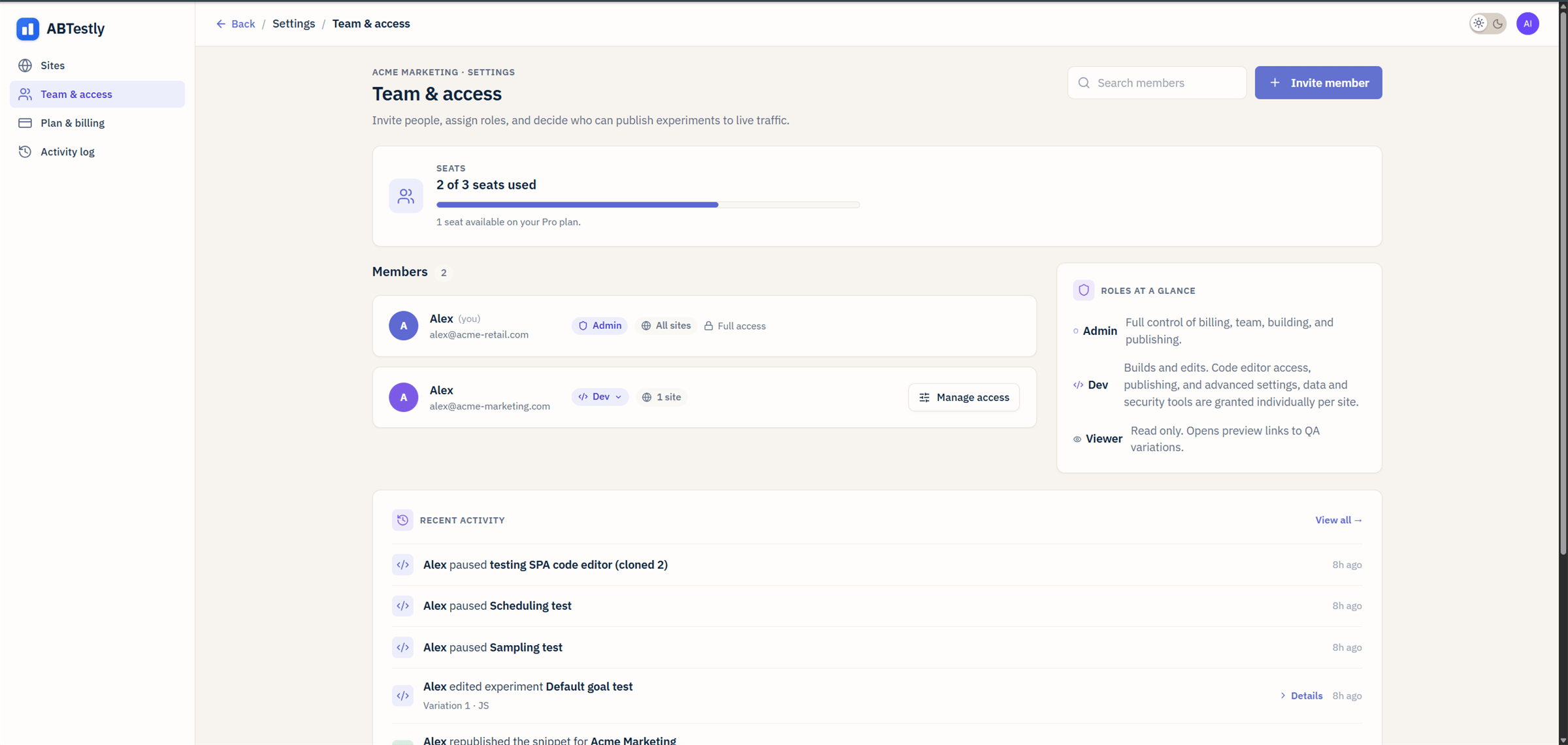
Team & access is a workspace-level page. It lives under
**Settings → Team & access**. Admins are the only role that can open
it. If you cannot see it, ask someone with an admin role to add you.
 If you have ever tried to run tests across a team of five and given
up because everyone was either "admin who can accidentally break
everything" or "read-only who cannot do the thing they were hired to
do", the point of this page is that neither of those has to be true.
## The three roles
Every member has exactly one role. It is the **ceiling**, what they
can, at most, do. Inside the ceiling, per-site permission keys decide
what they actually have.
### Admin
Full control. Admins can:
* Change plans, cancel, or pay the bill.
* Invite, remove, or change any member's role.
* Grant or revoke every per-site permission key on every member.
* Delete sites and delete experiments.
* Publish, pause, archive, restore, schedule anything.
* Edit every setting, every goal, every location, every audience.
Admins are the only role that can promote or demote other members.
The **Danger zone** and **Delete experiments** actions are
admin-only even inside the drawer.
Pick Admin for co-founders, the person who owns billing, and anyone
who genuinely needs to stop a bad test at 3am without asking.
### Dev
Builds and edits experiments. The Dev role includes access to:
* The [Monaco code editor](/build/variations) for variant JS and CSS.
* Advanced site settings ([SPA](/settings/spa-panel),
[Global JS](/settings/global-js), [analytics
adapters](/settings/analytics-adapters)).
* Data-sensitive tools like the [activity log](/team/activity-log)
and (when granted) the [blocked IPs](/settings/blocked-ips) list.
Being Dev does **not** automatically grant Publish. Every Dev needs
the **Publish experiments** permission key toggled on per site before
they can send a test live. This is deliberate, many teams have a
"build here, deploy there" model.
Pick Dev for CRO engineers, front-end contractors, freelancers, or
anyone writing variant code.
### Viewer
Read-only. Viewers can:
* Open the dashboard, read results, browse experiments and their
history.
* Open [preview links](/preview/preview-modal) to QA variants
visually.
* Read the [activity log](/team/activity-log).
Viewers cannot edit anything, cannot publish anything, cannot invite
anyone. The role is designed for stakeholders, the analyst who
wants to read the numbers, the manager who wants to see what is
running, the intern learning the tool.
## Which sites a member can touch
Every member has a **site scope**: either "all sites in this
workspace" or a specific list of sites. On the Team & access page,
each row shows the scope next to the role.
Two common shapes:
* **In-house team.** Everyone is on all sites. Scope every member to
"All sites" and use per-site permissions to differentiate.
* **Agency.** Each contractor is on a specific client's site only.
Scope tightly to just that site; even if they have Admin on that
site, they cannot see or touch others.
Changing the scope takes effect **immediately**. A member who loses
access to a site loses it on their next API request, not on their
next login, not tomorrow.
## The Manage access drawer
Click **Manage access** on any member row and the drawer opens.
If you have ever tried to run tests across a team of five and given
up because everyone was either "admin who can accidentally break
everything" or "read-only who cannot do the thing they were hired to
do", the point of this page is that neither of those has to be true.
## The three roles
Every member has exactly one role. It is the **ceiling**, what they
can, at most, do. Inside the ceiling, per-site permission keys decide
what they actually have.
### Admin
Full control. Admins can:
* Change plans, cancel, or pay the bill.
* Invite, remove, or change any member's role.
* Grant or revoke every per-site permission key on every member.
* Delete sites and delete experiments.
* Publish, pause, archive, restore, schedule anything.
* Edit every setting, every goal, every location, every audience.
Admins are the only role that can promote or demote other members.
The **Danger zone** and **Delete experiments** actions are
admin-only even inside the drawer.
Pick Admin for co-founders, the person who owns billing, and anyone
who genuinely needs to stop a bad test at 3am without asking.
### Dev
Builds and edits experiments. The Dev role includes access to:
* The [Monaco code editor](/build/variations) for variant JS and CSS.
* Advanced site settings ([SPA](/settings/spa-panel),
[Global JS](/settings/global-js), [analytics
adapters](/settings/analytics-adapters)).
* Data-sensitive tools like the [activity log](/team/activity-log)
and (when granted) the [blocked IPs](/settings/blocked-ips) list.
Being Dev does **not** automatically grant Publish. Every Dev needs
the **Publish experiments** permission key toggled on per site before
they can send a test live. This is deliberate, many teams have a
"build here, deploy there" model.
Pick Dev for CRO engineers, front-end contractors, freelancers, or
anyone writing variant code.
### Viewer
Read-only. Viewers can:
* Open the dashboard, read results, browse experiments and their
history.
* Open [preview links](/preview/preview-modal) to QA variants
visually.
* Read the [activity log](/team/activity-log).
Viewers cannot edit anything, cannot publish anything, cannot invite
anyone. The role is designed for stakeholders, the analyst who
wants to read the numbers, the manager who wants to see what is
running, the intern learning the tool.
## Which sites a member can touch
Every member has a **site scope**: either "all sites in this
workspace" or a specific list of sites. On the Team & access page,
each row shows the scope next to the role.
Two common shapes:
* **In-house team.** Everyone is on all sites. Scope every member to
"All sites" and use per-site permissions to differentiate.
* **Agency.** Each contractor is on a specific client's site only.
Scope tightly to just that site; even if they have Admin on that
site, they cannot see or touch others.
Changing the scope takes effect **immediately**. A member who loses
access to a site loses it on their next API request, not on their
next login, not tomorrow.
## The Manage access drawer
Click **Manage access** on any member row and the drawer opens.
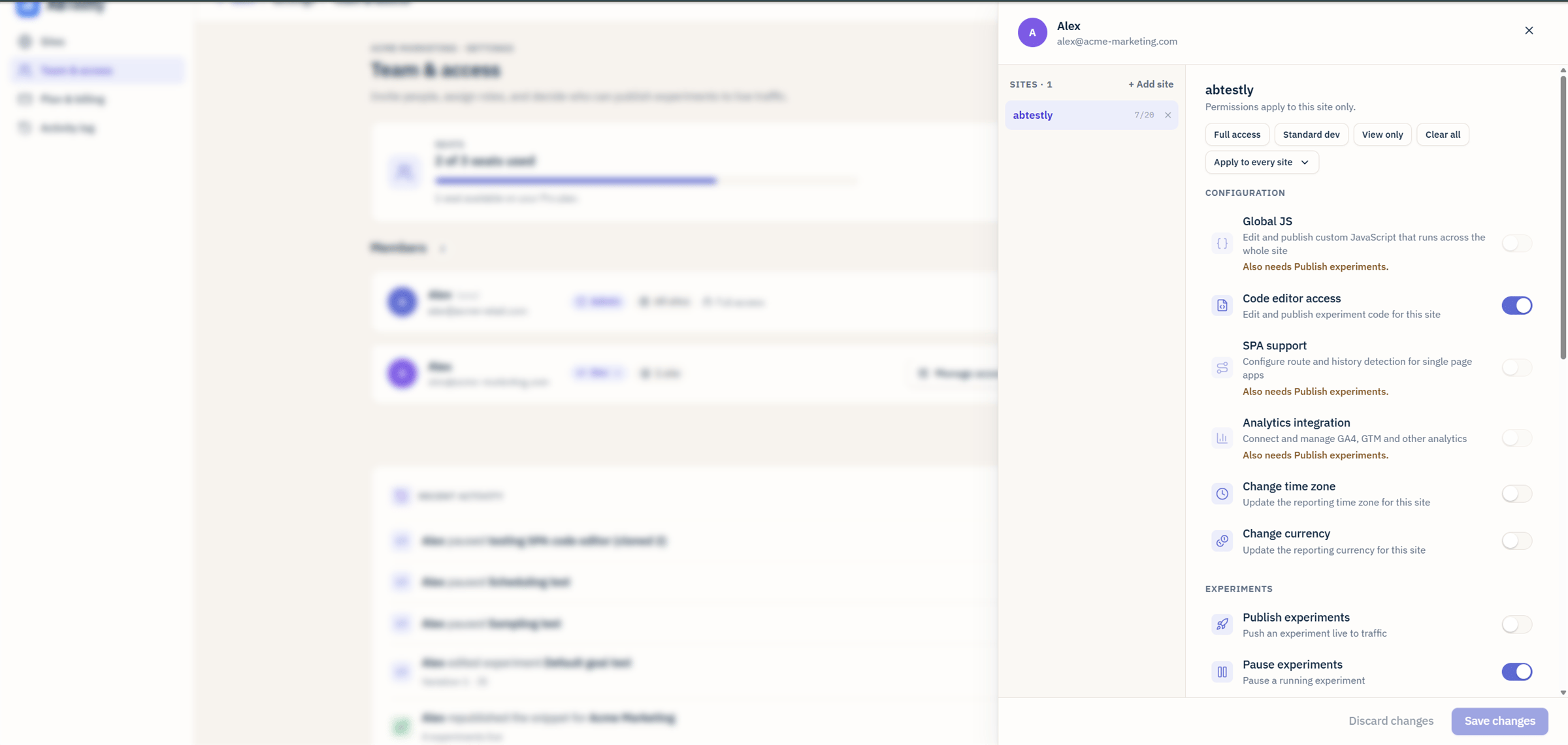 Twenty keys, grouped:
* **Building keys**, Code editor, Edit assets, Edit goals, Edit
audiences, Edit locations, Exclusion groups, Dev libraries.
* **Publishing keys**, Publish experiments, Pause experiments,
Schedule experiments, Archive experiments.
* **Site-shape keys**, Global JS, SPA, Analytics adapters,
Timezone, Currency.
* **Data-and-security keys**, Activity log, IP block list.
* **Sensitive keys**, Delete experiments, Danger zone.
Full list on the [permissions catalog](/team/permissions-catalog)
page with what each one unlocks.
The drawer applies changes **per site**. Grant Publish on site A and
withhold it on site B for the same member, the tool respects both.
## Presets: don't manually pick 20 keys every time
Four presets at the top of the drawer, so most invites take one
click:
* **Full access**, every key on. Co-founder, senior CRO lead,
platform engineer.
* **Standard dev**, every building key + Publish + Pause + Schedule.
Not IP block list, not Danger zone. A safe default for a new hire
who will run tests day-to-day.
* **View only**, every key off. For a stakeholder who reads results
without any risk of a stray edit.
* **Clear all**, resets the drawer to nothing selected. Useful as
a starting point for a bespoke role.
Presets are a **starting point**. Set the preset, then adjust
individual keys.
## Companion enforcement
Some keys imply others. The drawer will not save an inconsistent
combination.
* **Global JS** requires **Publish experiments**, otherwise the
Global JS toggle cannot go live.
* **SPA** requires **Publish experiments**.
* **Analytics adapters** requires **Publish experiments**.
* **Schedule experiments** requires **Publish experiments**.
Turn any of them on and the drawer auto-flips Publish on with it.
The **Danger zone** and **Delete experiments** keys are marked
**sensitive**. Granting them prompts for confirmation each time; the
API also double-checks on every call.
## Enforcement, dashboard hides, worker refuses
Permission enforcement runs on both ends:
* The dashboard **hides** buttons a member does not have. A Viewer
never sees the Publish button in the first place.
* The worker **refuses** the API call. Even if a malicious client
bypassed the UI, the worker would return a 403.
A denied action shows a plain-language error toast, "You do not
have permission to publish on this site. Ask an admin to grant it."
## Common team shapes
You are the only member. Admin, all sites, all keys. Nothing to
configure. Add teammates later as you grow.
You (Admin, all sites). A CRO lead (Admin, all sites). Two or
three Devs (Dev, all sites, Standard-dev preset). Stakeholders
(Viewer, all sites).
You (Admin, all sites). Each contractor scoped to one client's
site, Dev role, Publish gated per client's preference (some
clients want to click Start themselves, some delegate).
Only two admins. Devs get Standard-dev, no Publish, they build
and hand off. A dedicated "publisher" role (Dev + Publish key
only) approves and starts tests. Full audit via activity log.
## Inviting a member
**Invite member** button on the Team & access page. Enter their
email, pick a role, pick the site scope, click Send.
They get an email with a one-click accept link. If they already have
an ABTestly account under that email, accepting adds them to this
workspace. If not, accepting takes them through signup first, then
adds them.
Invites **expire after seven days**. Resend from the same page, the
row shows a "Pending invite" pill for anyone who has not accepted.
Nothing about the invite gives the recipient any information about
your workspace beyond your workspace name.
## Roles vs seats
The seats meter at the top of the page counts **members**.
regardless of role. On the Pro plan you have three seats; adding a
fourth person means either upgrading or removing someone first. See
[plans](/plans) for seat counts per tier.
Viewers count as seats too. Splitting into "editing seats" vs
"reading seats" is not a thing ABTestly does; the tradeoff is that
every teammate gets the same experience and the pricing stays
predictable.
## Removing a member
**Remove** on their row. They lose access immediately on their next
request. Their **history stays**, every experiment they created,
every edit they made, every test they published still shows their
name in the [activity log](/team/activity-log) and on experiment
metadata. This is intentional; an audit trail cannot be rewritten
by removing the actor.
## Recent activity
The bottom of Team & access shows a strip of the last few
significant workspace actions. For the full audit trail, every edit,
every publish, every permission toggle, use the
[Activity log](/team/activity-log). It is filter-and-URL-shareable
per member and per experiment.
## Related
Every key, what it unlocks, which role it requires.
Every meaningful change, grouped by day, filterable.
Twenty keys, grouped:
* **Building keys**, Code editor, Edit assets, Edit goals, Edit
audiences, Edit locations, Exclusion groups, Dev libraries.
* **Publishing keys**, Publish experiments, Pause experiments,
Schedule experiments, Archive experiments.
* **Site-shape keys**, Global JS, SPA, Analytics adapters,
Timezone, Currency.
* **Data-and-security keys**, Activity log, IP block list.
* **Sensitive keys**, Delete experiments, Danger zone.
Full list on the [permissions catalog](/team/permissions-catalog)
page with what each one unlocks.
The drawer applies changes **per site**. Grant Publish on site A and
withhold it on site B for the same member, the tool respects both.
## Presets: don't manually pick 20 keys every time
Four presets at the top of the drawer, so most invites take one
click:
* **Full access**, every key on. Co-founder, senior CRO lead,
platform engineer.
* **Standard dev**, every building key + Publish + Pause + Schedule.
Not IP block list, not Danger zone. A safe default for a new hire
who will run tests day-to-day.
* **View only**, every key off. For a stakeholder who reads results
without any risk of a stray edit.
* **Clear all**, resets the drawer to nothing selected. Useful as
a starting point for a bespoke role.
Presets are a **starting point**. Set the preset, then adjust
individual keys.
## Companion enforcement
Some keys imply others. The drawer will not save an inconsistent
combination.
* **Global JS** requires **Publish experiments**, otherwise the
Global JS toggle cannot go live.
* **SPA** requires **Publish experiments**.
* **Analytics adapters** requires **Publish experiments**.
* **Schedule experiments** requires **Publish experiments**.
Turn any of them on and the drawer auto-flips Publish on with it.
The **Danger zone** and **Delete experiments** keys are marked
**sensitive**. Granting them prompts for confirmation each time; the
API also double-checks on every call.
## Enforcement, dashboard hides, worker refuses
Permission enforcement runs on both ends:
* The dashboard **hides** buttons a member does not have. A Viewer
never sees the Publish button in the first place.
* The worker **refuses** the API call. Even if a malicious client
bypassed the UI, the worker would return a 403.
A denied action shows a plain-language error toast, "You do not
have permission to publish on this site. Ask an admin to grant it."
## Common team shapes
You are the only member. Admin, all sites, all keys. Nothing to
configure. Add teammates later as you grow.
You (Admin, all sites). A CRO lead (Admin, all sites). Two or
three Devs (Dev, all sites, Standard-dev preset). Stakeholders
(Viewer, all sites).
You (Admin, all sites). Each contractor scoped to one client's
site, Dev role, Publish gated per client's preference (some
clients want to click Start themselves, some delegate).
Only two admins. Devs get Standard-dev, no Publish, they build
and hand off. A dedicated "publisher" role (Dev + Publish key
only) approves and starts tests. Full audit via activity log.
## Inviting a member
**Invite member** button on the Team & access page. Enter their
email, pick a role, pick the site scope, click Send.
They get an email with a one-click accept link. If they already have
an ABTestly account under that email, accepting adds them to this
workspace. If not, accepting takes them through signup first, then
adds them.
Invites **expire after seven days**. Resend from the same page, the
row shows a "Pending invite" pill for anyone who has not accepted.
Nothing about the invite gives the recipient any information about
your workspace beyond your workspace name.
## Roles vs seats
The seats meter at the top of the page counts **members**.
regardless of role. On the Pro plan you have three seats; adding a
fourth person means either upgrading or removing someone first. See
[plans](/plans) for seat counts per tier.
Viewers count as seats too. Splitting into "editing seats" vs
"reading seats" is not a thing ABTestly does; the tradeoff is that
every teammate gets the same experience and the pricing stays
predictable.
## Removing a member
**Remove** on their row. They lose access immediately on their next
request. Their **history stays**, every experiment they created,
every edit they made, every test they published still shows their
name in the [activity log](/team/activity-log) and on experiment
metadata. This is intentional; an audit trail cannot be rewritten
by removing the actor.
## Recent activity
The bottom of Team & access shows a strip of the last few
significant workspace actions. For the full audit trail, every edit,
every publish, every permission toggle, use the
[Activity log](/team/activity-log). It is filter-and-URL-shareable
per member and per experiment.
## Related
Every key, what it unlocks, which role it requires.
Every meaningful change, grouped by day, filterable.