> ## Documentation Index
> Fetch the complete documentation index at: https://docs.abtestly.com/llms.txt
> Use this file to discover all available pages before exploring further.
# Review changes before you save
> Compare your unsaved edits to a variation's JavaScript, CSS and libraries with the saved code, then save from the comparison or go back to the editor.
Saving variation code on a running experiment republishes it, so whatever
you save goes to visitors. **Review changes** shows you exactly what you are
about to save, line by line, next to the code that is saved now. You can keep
editing in the comparison and save straight from it.
## Where you can compare code
| Where | Button | What it compares |
| -------------------------------------------------------------------------------- | ---------------------- | -------------------------------------------------------------- |
| The inline code editor on the experiment page | **Review changes** | Your unsaved JavaScript, CSS and libraries with the saved code |
| The experiment editor's Variations section, when you edit an existing experiment | **Compare with saved** | The variation's working JavaScript and CSS with the saved code |
| The recovery banner above the inline editor | **Compare with saved** | A recovered local draft with the saved code, read only |
| [Code history](/build/code-history) | Tick two versions | Any two saved versions of one variation, read only |
| [Activity log](/team/activity-log#code-changes) | **Details** | The before and after of one save, read only |
This page covers the first three. All of them use the same comparison view.
## Review changes in the inline editor
On the experiment page, open a variation's code with the code button on
its row (its tooltip reads **Show code**), then click **Edit**.
Edit either file, or attach or remove a library from **Libraries**.
**Review changes** in the editor header stays unavailable until something
differs from the saved code.
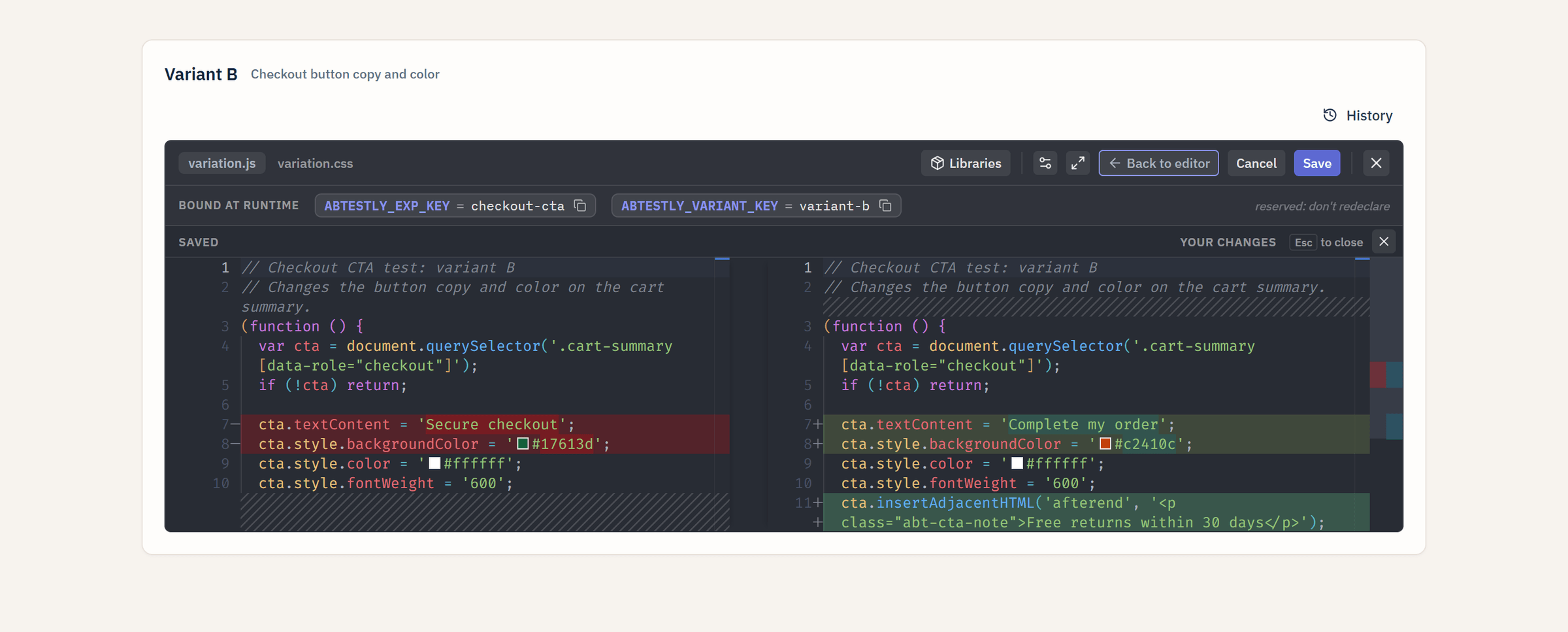
The editor area switches to a comparison: **Saved** on the left, **Your
changes** on the right. The button now reads **Back to editor**.
Click **Save**, or press Ctrl+S (Cmd+S on a Mac). Or leave the comparison
and keep editing.
 ### What the comparison shows
* **One file at a time.** You see the open file, **variation.js** or
**variation.css**. Switch with the tabs in the header. If you turn review on
while the open file is unchanged and the other file has changes, it opens
on the file that changed.
* **The left side is always read only.** It is the saved code. The right side
is your draft and you can keep typing in it. It is the same draft the editor
holds, so leaving the comparison keeps every edit.
* **Every character counts.** A change that only adds or removes whitespace
shows as a change, because Save sends it.
* **The layout follows the width.** At 900 pixels wide or more the two
versions sit side by side. Narrower than that, the comparison switches to
a single inline view.
* **Your editor settings apply.** The theme, font size, word wrap and
ligatures you set with the cog icon apply to the comparison too.
### Library changes
Libraries you attach from **Libraries** are part of what Save sends, so a
library change counts as an unsaved change even when the code is untouched.
A comparison of code cannot show it, so one line under the header names it:
| Line | Meaning |
| ----------------------------------------------- | ------------------------------------------------------------------------------------------------------------- |
| `Libraries: adds ` | Your draft attaches a library the saved variation does not have |
| `Libraries: removes ` | Your draft drops a library the saved variation has |
| `Libraries: adds ; removes ` | Both. Several keys are separated by commas |
| `Libraries: same libraries in a new load order` | The same libraries, loaded in a different order. Load order is part of the variation, so this is a change too |
When only the libraries changed, both sides of the comparison show the same
code and the line carries the difference. See
[Dev libraries](/build/dev-libraries) for what a library key is.
A comparison of two versions in [Code history](/build/code-history#compare-two-versions)
shows the same line when their libraries differ, read from the older version
to the newer one.
### Save from the comparison
Saving works the same from the comparison as from the editor. Click **Save**
in the header, or press Ctrl+S (Cmd+S) with the cursor in either side. The
request is exactly the one the editor would send.
* **Your code is formatted on save.** Save runs Prettier over both files
before sending them, the same as a save from the editor. A file that does
not parse is sent as it is. So the stored code can differ in layout from
what you reviewed. [Code history](/build/code-history) always shows what
was actually stored.
* **A syntax error blocks the save.** A red strip names the file, for
example **variation.js has a syntax error. Fix it before saving.**
* **Data may need a decision.** On an experiment that has collected data,
saving changed code first asks whether to reset or keep that data. The
comparison stays open while you decide. See
[Editing a running test](/results/editing-a-running-test).
* **Success closes the comparison.** You see **Saved and republished** on a
running experiment, or **Code saved** otherwise. The comparison closes and
you are back in the editor, which stays open with your code.
### Why Review changes is unavailable
The button is disabled, with the tooltip **No unsaved changes**, whenever
your draft matches the saved code: the JavaScript, the CSS and the library
keys are all the same. That includes the moment right after a save.
To see what your last save changed, open **History** on the variation and
click **Previous save**. See [quick picks](/build/code-history#quick-picks).
### Leave the comparison
Each of these keeps your draft:
* Click **Back to editor** in the editor header. It is never disabled.
* Click the close button (×) in the comparison's own header, next to the
**Esc to close** hint. Its tooltip reads **Close comparison (Esc)**.
* Press Esc with the cursor in the comparison.
The editor has two close buttons. The one in the comparison's header closes
the comparison only. The one at the end of the editor header, after **Save**,
is **Close editor**: like **Cancel**, it closes the editor and drops your
unsaved edits, including the copy autosave kept in this browser.
Esc goes to the code editor's own popups first. If the find widget, the
suggestion list, parameter hints, the rename box, the command palette (F1),
Go to line (Ctrl+G), a peek view or a similar popup is open, Esc closes that.
If text is selected or you have extra cursors, Esc clears them. Press Esc
again to close the comparison. One exception: when a hover tooltip is
showing, a single Esc hides it and also closes the comparison.
### Full screen
**Full screen** in the editor header opens the editor over the page. Review
changes works the same way there, and the library line stays under the
header. Esc with the cursor in the comparison closes the comparison and keeps
you in full screen. Esc outside the comparison leaves full screen, as the
button's tooltip, **Exit full screen (Esc)**, says.
### When the experiment is locked
Once a running experiment has 1,000 visitors since its last reset, its
variation code locks. **Edit** is no longer offered and the Variations card
shows **Locked**. See
[editor freezes on running tests](/build/variations#editor-freezes-on-running-tests).
If the lock takes effect while you already have the editor open:
* The editor and the comparison both turn read only.
* **Save** is disabled, with the tooltip **Code is read only**.
* **Libraries** is hidden.
* Ctrl+S shows the lock message instead of saving.
You can still open Review changes to read what you had changed. Pause the
experiment to edit and save again.
## Compare with saved in the experiment editor
When you edit an existing experiment, the code editor in the Variations
section offers **Compare with saved** in place of Review changes. It opens the
same comparison, **Saved** on the left and **Your changes** on the right, and
the right side stays editable. It differs from Review changes in a few ways:
* **Only for saved variations.** It is not offered while you create an
experiment, or on a variation you added and have not saved yet.
* **JavaScript and CSS only.** Library changes do not make it available and
are not listed.
* **No save from inside it.** The experiment editor saves the whole
experiment with its own button, **Save changes**, or **Save & republish** on
a running experiment. Ctrl+S inside the comparison does not save.
* **Done closes it.** **Done** closes the code editor and the comparison, and
reopening starts on the editor. After the experiment saves, an open
comparison closes, since there is nothing left to compare.
On a locked experiment the variation shows **View code**, and the editor and
the comparison are both read only.
## Compare a recovered draft
Autosave keeps the code you are typing in this browser, so a reload or a
crash does not lose it. See [Autosave and drafts](/build/autosave). When you
open the editor and such a draft is waiting, the recovery banner above the
editor offers **Recover** (**Recover anyway** when the saved code has changed
since), **Discard**, and **Compare with saved**.
**Compare with saved** opens a read only comparison inside the banner:
* **Saved** on the left, **Recovered draft** on the right.
* **variation.js** and **variation.css** switch the file. If only the CSS
differs, it opens on **variation.css**.
* When the draft changed the variation's libraries, for example after you
[restored an older version](/build/code-history#restore-an-older-version),
a line names the library difference.
Comparing never applies the draft. **Recover** and **Discard** stay the only
ways to settle it. Close the comparison with **Hide comparison**, its close
button or Esc.
## If the comparison does not load
The comparison loads the first time you open one. If it cannot load, which
usually means the dashboard was updated while your tab was open, the
comparison area reads **Couldn't show the comparison. Save your changes, then
reload the page.** with a **Retry** button. Your draft and the rest of the
page are untouched. A read only comparison reads **Couldn't show the
comparison. Reload the page to try again.**
## Keyboard shortcuts
The full list, for review and for History, is in the
[Code history reference](/build/code-history#keyboard-shortcuts).
## Related
Every saved version of a variation. Compare, see what changed since
launch, restore.
What the editor keeps in your browser and how recovery works.
Writing variation JavaScript and CSS in the editor.
Why saving code on a test with data asks you to reset or keep it.
### What the comparison shows
* **One file at a time.** You see the open file, **variation.js** or
**variation.css**. Switch with the tabs in the header. If you turn review on
while the open file is unchanged and the other file has changes, it opens
on the file that changed.
* **The left side is always read only.** It is the saved code. The right side
is your draft and you can keep typing in it. It is the same draft the editor
holds, so leaving the comparison keeps every edit.
* **Every character counts.** A change that only adds or removes whitespace
shows as a change, because Save sends it.
* **The layout follows the width.** At 900 pixels wide or more the two
versions sit side by side. Narrower than that, the comparison switches to
a single inline view.
* **Your editor settings apply.** The theme, font size, word wrap and
ligatures you set with the cog icon apply to the comparison too.
### Library changes
Libraries you attach from **Libraries** are part of what Save sends, so a
library change counts as an unsaved change even when the code is untouched.
A comparison of code cannot show it, so one line under the header names it:
| Line | Meaning |
| ----------------------------------------------- | ------------------------------------------------------------------------------------------------------------- |
| `Libraries: adds ` | Your draft attaches a library the saved variation does not have |
| `Libraries: removes ` | Your draft drops a library the saved variation has |
| `Libraries: adds ; removes ` | Both. Several keys are separated by commas |
| `Libraries: same libraries in a new load order` | The same libraries, loaded in a different order. Load order is part of the variation, so this is a change too |
When only the libraries changed, both sides of the comparison show the same
code and the line carries the difference. See
[Dev libraries](/build/dev-libraries) for what a library key is.
A comparison of two versions in [Code history](/build/code-history#compare-two-versions)
shows the same line when their libraries differ, read from the older version
to the newer one.
### Save from the comparison
Saving works the same from the comparison as from the editor. Click **Save**
in the header, or press Ctrl+S (Cmd+S) with the cursor in either side. The
request is exactly the one the editor would send.
* **Your code is formatted on save.** Save runs Prettier over both files
before sending them, the same as a save from the editor. A file that does
not parse is sent as it is. So the stored code can differ in layout from
what you reviewed. [Code history](/build/code-history) always shows what
was actually stored.
* **A syntax error blocks the save.** A red strip names the file, for
example **variation.js has a syntax error. Fix it before saving.**
* **Data may need a decision.** On an experiment that has collected data,
saving changed code first asks whether to reset or keep that data. The
comparison stays open while you decide. See
[Editing a running test](/results/editing-a-running-test).
* **Success closes the comparison.** You see **Saved and republished** on a
running experiment, or **Code saved** otherwise. The comparison closes and
you are back in the editor, which stays open with your code.
### Why Review changes is unavailable
The button is disabled, with the tooltip **No unsaved changes**, whenever
your draft matches the saved code: the JavaScript, the CSS and the library
keys are all the same. That includes the moment right after a save.
To see what your last save changed, open **History** on the variation and
click **Previous save**. See [quick picks](/build/code-history#quick-picks).
### Leave the comparison
Each of these keeps your draft:
* Click **Back to editor** in the editor header. It is never disabled.
* Click the close button (×) in the comparison's own header, next to the
**Esc to close** hint. Its tooltip reads **Close comparison (Esc)**.
* Press Esc with the cursor in the comparison.
The editor has two close buttons. The one in the comparison's header closes
the comparison only. The one at the end of the editor header, after **Save**,
is **Close editor**: like **Cancel**, it closes the editor and drops your
unsaved edits, including the copy autosave kept in this browser.
Esc goes to the code editor's own popups first. If the find widget, the
suggestion list, parameter hints, the rename box, the command palette (F1),
Go to line (Ctrl+G), a peek view or a similar popup is open, Esc closes that.
If text is selected or you have extra cursors, Esc clears them. Press Esc
again to close the comparison. One exception: when a hover tooltip is
showing, a single Esc hides it and also closes the comparison.
### Full screen
**Full screen** in the editor header opens the editor over the page. Review
changes works the same way there, and the library line stays under the
header. Esc with the cursor in the comparison closes the comparison and keeps
you in full screen. Esc outside the comparison leaves full screen, as the
button's tooltip, **Exit full screen (Esc)**, says.
### When the experiment is locked
Once a running experiment has 1,000 visitors since its last reset, its
variation code locks. **Edit** is no longer offered and the Variations card
shows **Locked**. See
[editor freezes on running tests](/build/variations#editor-freezes-on-running-tests).
If the lock takes effect while you already have the editor open:
* The editor and the comparison both turn read only.
* **Save** is disabled, with the tooltip **Code is read only**.
* **Libraries** is hidden.
* Ctrl+S shows the lock message instead of saving.
You can still open Review changes to read what you had changed. Pause the
experiment to edit and save again.
## Compare with saved in the experiment editor
When you edit an existing experiment, the code editor in the Variations
section offers **Compare with saved** in place of Review changes. It opens the
same comparison, **Saved** on the left and **Your changes** on the right, and
the right side stays editable. It differs from Review changes in a few ways:
* **Only for saved variations.** It is not offered while you create an
experiment, or on a variation you added and have not saved yet.
* **JavaScript and CSS only.** Library changes do not make it available and
are not listed.
* **No save from inside it.** The experiment editor saves the whole
experiment with its own button, **Save changes**, or **Save & republish** on
a running experiment. Ctrl+S inside the comparison does not save.
* **Done closes it.** **Done** closes the code editor and the comparison, and
reopening starts on the editor. After the experiment saves, an open
comparison closes, since there is nothing left to compare.
On a locked experiment the variation shows **View code**, and the editor and
the comparison are both read only.
## Compare a recovered draft
Autosave keeps the code you are typing in this browser, so a reload or a
crash does not lose it. See [Autosave and drafts](/build/autosave). When you
open the editor and such a draft is waiting, the recovery banner above the
editor offers **Recover** (**Recover anyway** when the saved code has changed
since), **Discard**, and **Compare with saved**.
**Compare with saved** opens a read only comparison inside the banner:
* **Saved** on the left, **Recovered draft** on the right.
* **variation.js** and **variation.css** switch the file. If only the CSS
differs, it opens on **variation.css**.
* When the draft changed the variation's libraries, for example after you
[restored an older version](/build/code-history#restore-an-older-version),
a line names the library difference.
Comparing never applies the draft. **Recover** and **Discard** stay the only
ways to settle it. Close the comparison with **Hide comparison**, its close
button or Esc.
## If the comparison does not load
The comparison loads the first time you open one. If it cannot load, which
usually means the dashboard was updated while your tab was open, the
comparison area reads **Couldn't show the comparison. Save your changes, then
reload the page.** with a **Retry** button. Your draft and the rest of the
page are untouched. A read only comparison reads **Couldn't show the
comparison. Reload the page to try again.**
## Keyboard shortcuts
The full list, for review and for History, is in the
[Code history reference](/build/code-history#keyboard-shortcuts).
## Related
Every saved version of a variation. Compare, see what changed since
launch, restore.
What the editor keeps in your browser and how recovery works.
Writing variation JavaScript and CSS in the editor.
Why saving code on a test with data asks you to reset or keep it.